<?xml version="1.0" encoding="UTF-8" ?>
<rdf:RDF
  xmlns:rdf="http://www.w3.org/1999/02/22-rdf-syntax-ns#"
  xmlns="http://purl.org/rss/1.0/"
  xmlns:dc="http://purl.org/dc/elements/1.1/"
  xmlns:content="http://purl.org/rss/1.0/modules/content/">

  <channel rdf:about="https://hatch8.en-grey.com/RSS/100/">
    <title>ジャニヲタ的ITライフ</title>
    <link>https://hatch8.en-grey.com/</link>
    <atom10:link xmlns:atom10="http://www.w3.org/2005/Atom" rel="self" type="application/rss+xml" href="https://hatch8.en-grey.com/RSS/" />
    <atom10:link xmlns:atom10="http://www.w3.org/2005/Atom" rel="hub" href="http://pubsubhubbub.appspot.com/" />
    <description>iPod touchとかAndroidとか、その他IT関係？をヲタク的に使いこなすためのつまりただの備忘録。</description>
    <dc:language>ja</dc:language>
    <dc:date>2012-02-16T12:36:09+09:00</dc:date>
    <items>
    <rdf:Seq>
      <rdf:li rdf:resource="https://hatch8.en-grey.com/%E3%81%9D%E3%81%AE%E4%BB%96/cprm%E3%82%92%E8%A7%A3%E9%99%A4%E3%81%97%E3%81%A6dvd%E3%82%92%E3%82%B3%E3%83%94%E3%83%BC%E3%81%99%E3%82%8B" />
      <rdf:li rdf:resource="https://hatch8.en-grey.com/android/3g%E6%8E%A5%E7%B6%9A%E3%82%92%E8%A7%A3%E9%99%A4%E3%81%97%E3%81%A6%E3%83%91%E3%82%B1%E4%BB%A3%E7%AF%80%E7%B4%84" />
      <rdf:li rdf:resource="https://hatch8.en-grey.com/android/%E3%82%A2%E3%83%97%E3%83%AA%E3%82%92%E5%BC%B7%E5%88%B6%E7%9A%84%E3%81%ABsd%E3%81%B8%E7%A7%BB%E5%8B%95%E3%81%95%E3%81%9B%E3%82%8B%E6%96%B9%E6%B3%95" />
      <rdf:li rdf:resource="https://hatch8.en-grey.com/ipod%20touch/%E7%84%A1%E9%A1%8C" />
      <rdf:li rdf:resource="https://hatch8.en-grey.com/android/%E3%83%B2%E3%82%BF%E3%82%AF%E3%81%AE%E5%91%B3%E6%96%B9%EF%BC%81%E3%83%AA%E3%83%80%E3%82%A4%E3%83%A4%E3%83%AB%E3%82%A2%E3%83%97%E3%83%AA" />
      <rdf:li rdf:resource="https://hatch8.en-grey.com/android/google%E3%82%AB%E3%83%AC%E3%83%B3%E3%83%80%E3%83%BC%E3%81%A8%E5%90%8C%E6%9C%9F%EF%BC%88%E4%BA%88%E5%AE%9A%EF%BC%89%EF%BC%81%E3%83%86%E3%83%AC%E3%83%93%E6%AC%84%EF%BC%81" />
      <rdf:li rdf:resource="https://hatch8.en-grey.com/android/xperia%E3%80%80acro%E3%81%A7%E3%82%B9%E3%82%AF%E3%83%AA%E3%83%BC%E3%83%B3%E3%82%B7%E3%83%A7%E3%83%83%E3%83%88%E3%82%92%E6%92%AE%E3%82%8B%E6%96%B9%E6%B3%95%E3%80%90%E3%81%9D%E3%81%AE%E2%91%A0%E3%80%91" />
      <rdf:li rdf:resource="https://hatch8.en-grey.com/%E3%81%9D%E3%81%AE%E4%BB%96/%E3%81%84%E3%82%84%E3%81%81%E3%83%BB%E3%83%BB%E3%83%BB%E3%83%BB" />
      <rdf:li rdf:resource="https://hatch8.en-grey.com/%E3%81%9D%E3%81%AE%E4%BB%96/iphone%E3%80%81ipad%E3%82%92%E7%B4%9B%E5%A4%B1%E3%81%97%E3%81%9F%E3%82%89%E3%83%BB%E3%83%BB%E3%83%BB" />
      <rdf:li rdf:resource="https://hatch8.en-grey.com/ipod%20touch/gizmobiez" />
    </rdf:Seq>
    </items>
  </channel>

  <item rdf:about="https://hatch8.en-grey.com/%E3%81%9D%E3%81%AE%E4%BB%96/cprm%E3%82%92%E8%A7%A3%E9%99%A4%E3%81%97%E3%81%A6dvd%E3%82%92%E3%82%B3%E3%83%94%E3%83%BC%E3%81%99%E3%82%8B">
    <link>https://hatch8.en-grey.com/%E3%81%9D%E3%81%AE%E4%BB%96/cprm%E3%82%92%E8%A7%A3%E9%99%A4%E3%81%97%E3%81%A6dvd%E3%82%92%E3%82%B3%E3%83%94%E3%83%BC%E3%81%99%E3%82%8B</link>
    <title>CPRMを解除してDVDをコピーする</title>
    <description>地デジになってからコピーワンスだのダビング10だのコピー制限が鬱陶しい。
著作権大事なのはわかる。がしかし、地方ではやらない番組録画してもらったりダビングしてもらったものさらに誰かにあげたり・・・ってのがヲタクライフには必須なわけでだな。

ということでCPRMを解除してDVDをコピーする方法...</description>
    <content:encoded><![CDATA[地デジになってからコピーワンスだのダビング10だのコピー制限が鬱陶しい。<br />
著作権大事なのはわかる。がしかし、地方ではやらない番組録画してもらったりダビングしてもらったものさらに誰かにあげたり・・・ってのがヲタクライフには必須なわけでだな。<br />
<br />
ということでCPRMを解除してDVDをコピーする方法をなんとか習得したので忘れないように書きとめておきます。<br />
<br />
<br />
○そもそも「CPRM」ってなんじゃ？<br />
<a href="http://kaden.johowave.com/dvd-rec/b-mtigai.html#cprm">http://kaden.johowave.com/dvd-rec/b-mtigai.html#cprm</a><br />
なんか詳しく書いてあった。<br />
<br />
○ダビング10？<br />
地デジ対応DVDに移行してすぐに悩んだのがこれ。つまり<br />
・DVDに9回までダビングできる<br />
・最後の1回は「MOVE」という扱いになるのでHDDからデータは消える<br />
・孫コピーは作れない<br />
・どのプレーヤーでも再生可能<br />
ってことらしい。<br />
<br />
やっぱり詳しく書いてあった<br />
<a href="http://kaden.johowave.com/dvd-rec/b-copy-once_dubbing10.html">http://kaden.johowave.com/dvd-rec/b-copy-once_dubbing10.html</a><br />
<br />
つまり、「地デジで録画したデータを焼いたDVDはコピーガードがかかってるのでさらにコピーをしようとするとガードを解除しないといけない」<br />
という話らしい<br />
<br />
そのCPRMを解除する方法<br />
これがなかなかややこしかった・・・<br />
<br />
<br />
<br />
○「relCPRM」をダウンロード&rarr;コピーしたいDVDを<br />
<a href="http://chidejicopy.crap.jp/copy/relcprm.html">http://chidejicopy.crap.jp/copy/relcprm.html</a><br />
ダウンロードへのリンクとインストール方法・使い方まで詳しく・・・<br />
<br />
ただ、relCPRMは有名なおかげでよくダウンロード先が削除されるらしいので注意。<br />
<br />
<br />
○動画の編集<br />
vro2spilit<br />
<a href="http://chidejicopy.crap.jp/tool/vro2split.html">http://chidejicopy.crap.jp/tool/vro2split.html</a><br />
<br />
CPRMを解除すると「‐.VRO」というファイルが作られるのですが、<br />
これはDVDの中身を全部一つにしたデータです。なので例えば番組を2本まとめていたDVDのCPRMを解除すると、全部つながった1本のデータになってしまいます。<br />
これを番組ごとに自動で分けてくれるのが「vro2split」。<br />
使い方は簡単。ダウンロードして、「-.exe」ってなってるファイルをCPRMを解除して出来た「‐.VRO」のファイルが入っているフォルダにコピーして、起動するだけ。<br />
これで自動で気に番組ごとのMPGファイルを作ってくれます。<br />
<br />
ちなみにチャプターは残らないので自力で作業・・・<br />
<br />
あとはいろいろチャプターわけたりする場合はする。面倒くさいので今回はしない。<br />
<br />
<br />
○DVDにコピー<br />
「DVD Flick」というソフトを使われてる人が多いみたいなんですが、どうしてか私はDVD Flickだと旨くデータが焼けた試しがないので、「Videos to DVD」というフリーソフトを使用してます。<br />
<a href="http://www.gigafree.net/media/dvdconv/freevideostodvd.html">http://www.gigafree.net/media/dvdconv/freevideostodvd.html</a><br />
<br />
ちなみにこのソフトでCravinExplorerから落とした動画とかも焼いています。<br />
最近はiPadに入れちゃう事の方が多いですけど・・・<br />
<br />
<br />
2012/2/17追記<br />
上記の方法でコピーはできたのですが、再生してみると早送りができないという何とも微妙な出来でした・・・<br />
ということで別の方法を模索。<br />
<br />
○relCPRMでCPRMを解除<br />
まではおなじ<br />
<br />
○UtilDVDRWでDVD-RWに書き戻し<br />
http://www.geocities.jp/triple_chic/utildvdrw.html<br />
<br />
・コピーした「－.VRO」と「－.IFO」をまとめて「DVD_RTAV」フォルダへ。<br />
・元のDVD-RWを挿入し、そこにCPRMを解除したデータを書き込み<br />
（上のサイト<font style="font-size:small;"><font style="font-family:ｍｓ ｐゴシック;">の<b style="color: rgb(0, 0, 0); font-family: 'MS PGothic'; font-size: medium; "><font size="+1">VRモードでのVRO、IFOファイルの書き込み</font></b></font></font>の部分です）<br />
・ImgBurnでISOイメージを作成&rarr;DVD-Rに書き込み<br />
<br />
IFOファイル（チャプターとかの情報が入ったファイル）が入ってるのでチャプター情報も残ってる！早送りもできる！これで自分の見たいとこからいつでも少クラ見れる！<br />
<br />
細かい話はまた時間があれば・・・]]></content:encoded>
    <dc:subject>その他</dc:subject>
    <dc:date>2012-02-16T12:36:09+09:00</dc:date>
    <dc:creator>亜悸</dc:creator>
    <dc:publisher>NINJA BLOG</dc:publisher>
    <dc:rights>亜悸</dc:rights>
  </item>
  <item rdf:about="https://hatch8.en-grey.com/android/3g%E6%8E%A5%E7%B6%9A%E3%82%92%E8%A7%A3%E9%99%A4%E3%81%97%E3%81%A6%E3%83%91%E3%82%B1%E4%BB%A3%E7%AF%80%E7%B4%84">
    <link>https://hatch8.en-grey.com/android/3g%E6%8E%A5%E7%B6%9A%E3%82%92%E8%A7%A3%E9%99%A4%E3%81%97%E3%81%A6%E3%83%91%E3%82%B1%E4%BB%A3%E7%AF%80%E7%B4%84</link>
    <title>3G接続を解除してパケ代節約</title>
    <description>私はPocketWi-fiを持ち歩いて、iPad、iPod、Xperiaに接続しています。たまにPSPとか。
当然外でもWi-fiが使えるのですが、Wi-fiがいつの間にか切断されていたりすると自動的にパケ代がかさんでいってしまう・・・3G邪魔だなおい。


ということで、3Gの自動接続を解...</description>
    <content:encoded><![CDATA[私はPocketWi-fiを持ち歩いて、iPad、iPod、Xperiaに接続しています。たまにPSPとか。<br />
当然外でもWi-fiが使えるのですが、Wi-fiがいつの間にか切断されていたりすると自動的にパケ代がかさんでいってしまう・・・3G邪魔だなおい。<br />
<br />
<br />
ということで、3Gの自動接続を解除するアプリ。<br />
<br />
<br />
<a href="//hatch8.en-grey.com/File/unnamed.png" target="_blank"><img alt="unnamed.png" src="//hatch8.en-grey.com/Img/1328845808/" style="border-top-width: 0px; border-right-width: 0px; border-bottom-width: 0px; border-left-width: 0px; border-top-style: solid; border-right-style: solid; border-bottom-style: solid; border-left-style: solid; float: left; width: 124px; height: 124px; " /><br />
<br />
<br />
<br />
『APNdroid』</a><br />
<br />
<br />
<br />
<br />
<br />
<br />
使い方は簡単。<br />
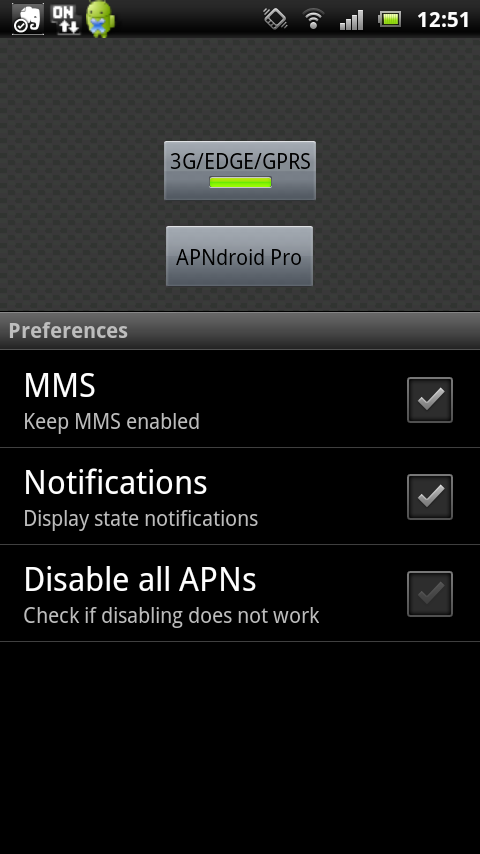
ダウンロードしてインストールしてアプリを開くと、&darr;のような画面が開きます。<br />
<a href="//hatch8.en-grey.com/File/screenshot_2012-02-10_1251.png" target="_blank"><img alt="screenshot_2012-02-10_1251.png" src="//hatch8.en-grey.com/Img/1328846038/" style="border-top-width: 0px; border-right-width: 0px; border-bottom-width: 0px; border-left-width: 0px; border-top-style: solid; border-right-style: solid; border-bottom-style: solid; border-left-style: solid; float: left; width: 84px; height: 150px; " /></a><br />
<br />
<br />
<br />
<br />
<br />
<br />
<br />
<br />
<br />
<br />
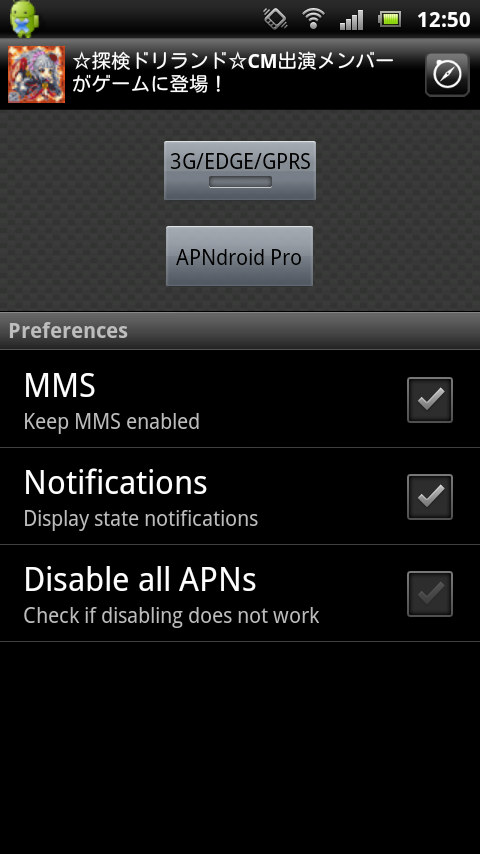
<a href="//hatch8.en-grey.com/File/screenshot_2012-02-10_1250.png" target="_blank"><img alt="screenshot_2012-02-10_1250.png" src="//hatch8.en-grey.com/Img/1328846037/" style="border-top-width: 0px; border-right-width: 0px; border-bottom-width: 0px; border-left-width: 0px; border-top-style: solid; border-right-style: solid; border-bottom-style: solid; border-left-style: solid; float: left; width: 84px; height: 150px; " /></a><br />
<br />
<br />
<br />
<br />
<br />
<br />
<br />
<br />
<br />
<br />
違いが分かりにくい・・・・<br />
上の部分が緑に光っているのが3G接続許可状態。<br />
ここをタップして光を消すと、3Gに接続されなくなります。<br />
<br />
毎回アプリを開くのが面倒くさい、という人はウィジェットもあるので便利。<br />
<br />
<br />
ちなみに私はこれを導入してパケホーダイ代ほぼ浮きました。<br />
機種代＋通話料で4000円代とか。助かってます<br />
<br />
<div style="clear:both">
	&nbsp;</div>
]]></content:encoded>
    <dc:subject>Android</dc:subject>
    <dc:date>2012-02-10T12:57:09+09:00</dc:date>
    <dc:creator>亜悸</dc:creator>
    <dc:publisher>NINJA BLOG</dc:publisher>
    <dc:rights>亜悸</dc:rights>
  </item>
  <item rdf:about="https://hatch8.en-grey.com/android/%E3%82%A2%E3%83%97%E3%83%AA%E3%82%92%E5%BC%B7%E5%88%B6%E7%9A%84%E3%81%ABsd%E3%81%B8%E7%A7%BB%E5%8B%95%E3%81%95%E3%81%9B%E3%82%8B%E6%96%B9%E6%B3%95">
    <link>https://hatch8.en-grey.com/android/%E3%82%A2%E3%83%97%E3%83%AA%E3%82%92%E5%BC%B7%E5%88%B6%E7%9A%84%E3%81%ABsd%E3%81%B8%E7%A7%BB%E5%8B%95%E3%81%95%E3%81%9B%E3%82%8B%E6%96%B9%E6%B3%95</link>
    <title>アプリを強制的にSDへ移動させる方法</title>
    <description>半年もAndroidoを使っているとしょっちゅう出てくるようになる「容量が不足しています」アラート。

・・・知ってる！でもアプリは減らしたないねん！
「App 2 SD」でSDに移動できるアプリもたかが知れている。


ということで強制的にApp2SDしちゃう方法を学んでみた。

...</description>
    <content:encoded><![CDATA[半年もAndroidoを使っているとしょっちゅう出てくるようになる「容量が不足しています」アラート。<br />
<br />
・・・知ってる！でもアプリは減らしたないねん！<br />
「App 2 SD」でSDに移動できるアプリもたかが知れている。<br />
<br />
<br />
ということで強制的にApp2SDしちゃう方法を学んでみた。<br />
<br />
ちなみにXperiaがアップデートしてスクショ取れるようになったお影で冬眠に入っていたAndroidSDKを利用します。アンインストールせんでよかった・・・・。<br />
<br />
１．Android-SDKをダウンロードしてPathを通す<br />
詳細は<a href="http://hatch8.en-grey.com/Entry/13/">この記事</a>を参照。<br />
<br />
２．USBでPCとXperiaを繋ぐ<br />
<br />
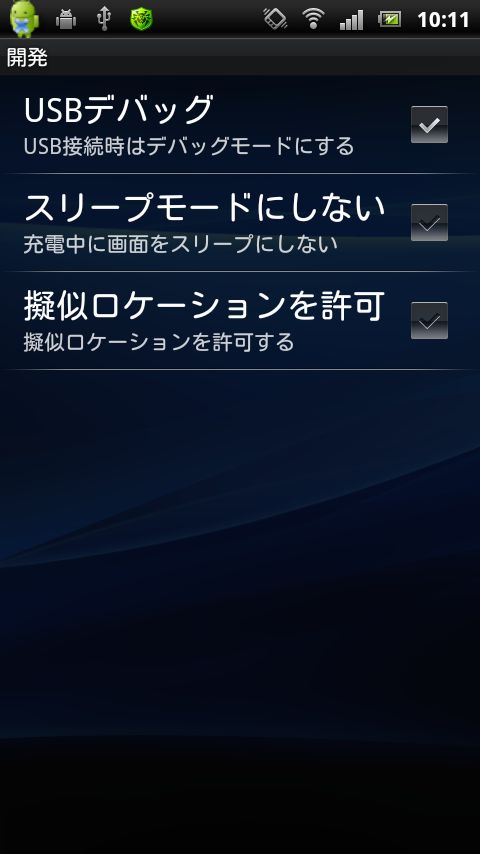
３．「設定」&rarr;「アプリケーション」&rarr;「開発」の「USBデバッグ」にチェックを入れる<br />
「USBデバッグを許可しますか？」とか聞かれるけれどとりあえずOK。<br />
<a href="//hatch8.en-grey.com/File/screenshot_2012-02-10_1011.png" target="_blank"><img alt="screenshot_2012-02-10_1011.png" src="//hatch8.en-grey.com/Img/1328836563/" style="border-top-width: 0px; border-right-width: 0px; border-bottom-width: 0px; border-left-width: 0px; border-top-style: solid; border-right-style: solid; border-bottom-style: solid; border-left-style: solid; float: left; width: 84px; height: 150px; " /></a><br />
<br />
<br />
<br />
<br />
<br />
<br />
<br />
<br />
<br />
<br />
４．コマンドプロンプトを起動<br />
<span style="color: rgb(0, 0, 255); font-family: 'MS PGothic'; font-size: 13px; line-height: 16px; text-align: left; ">adb shell pm setInstallLocation 2</span><br style="color: rgb(0, 0, 255); font-family: 'MS PGothic'; font-size: 13px; line-height: 16px; text-align: left; " />
<span style="color: rgb(0, 0, 255); font-family: 'MS PGothic'; font-size: 13px; line-height: 16px; text-align: left; ">adb shell reboot</span><br />
を入力。<br />
Xperiaの場合rebootしないことの方が多いみたいなので、その場合は手動で電源切って再起動。<br />
<br />
５．SDへ移動<br />
設定&rarr;アプリケーション設定&rarr;アプリケーション管理<br />
で実際にアプリを移動。<br />
もちろん全部が全部移動できるわけではないようです・・・あと、ウィジェット系は移動させると動かなくなったり。移動させると一時的に機能停止するアプリもあるのでお気をつけて。<br />
一つ一つ確かめつつ移動させていくのが吉のようです。<br />
<br />
<div style="clear:both"></div>]]></content:encoded>
    <dc:subject>Android</dc:subject>
    <dc:date>2012-02-10T12:35:26+09:00</dc:date>
    <dc:creator>亜悸</dc:creator>
    <dc:publisher>NINJA BLOG</dc:publisher>
    <dc:rights>亜悸</dc:rights>
  </item>
  <item rdf:about="https://hatch8.en-grey.com/ipod%20touch/%E7%84%A1%E9%A1%8C">
    <link>https://hatch8.en-grey.com/ipod%20touch/%E7%84%A1%E9%A1%8C</link>
    <title>無題</title>
    <description>スマホは便利ですが、便利がゆえになくすと怖い。

ということで紛失対策アプリ
・位置情報を定期的に取得
・端末のロック/アンロックがPC上で可能
・Googleアカウントで設定できる
・端末の鳴動も可


【紛失対策アプリ　beacon】


Androidマーケットからダウ...</description>
    <content:encoded><![CDATA[スマホは便利ですが、便利がゆえになくすと怖い。<br />
<br />
ということで紛失対策アプリ<br />
・位置情報を定期的に取得<br />
・端末のロック/アンロックがPC上で可能<br />
・Googleアカウントで設定できる<br />
・端末の鳴動も可<br />
<br />
<br />
【紛失対策アプリ　beacon】<br />
<br />
<a href="//hatch8.en-grey.com/File/twand003982-icon.png" target="_blank"><img alt="twand003982-icon.png" src="//hatch8.en-grey.com/Img/1315913251/" style="border-top-width: 0px; border-right-width: 0px; border-bottom-width: 0px; border-left-width: 0px; border-top-style: solid; border-right-style: solid; border-bottom-style: solid; border-left-style: solid; float: left; width: 64px; height: 64px; " /></a><br />
<a href="https://market.android.com/details?id=jp.ne.gate.beaconstd">Androidマーケットからダウンロード</a><br />
<br />
<br />
<br />
<br />
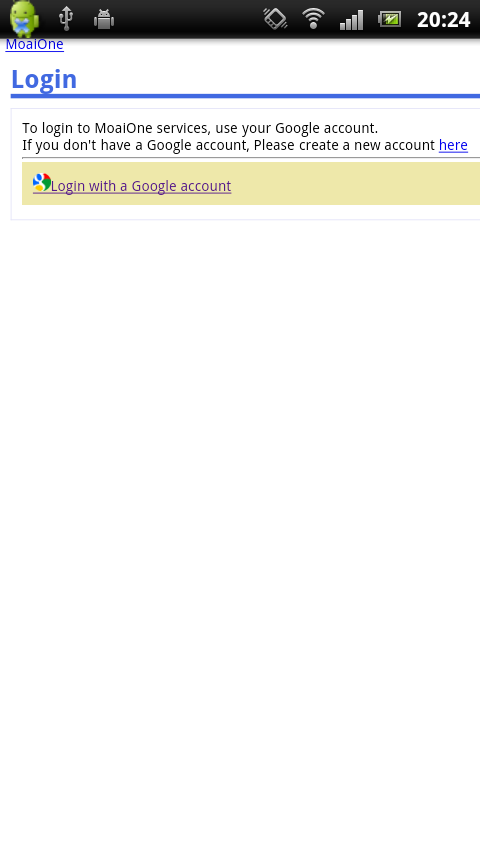
１．起動すると&darr;のような画面がでます。<br />
どうやらGoogleアカウントと動機づけができるよう。<br />
<a href="//hatch8.en-grey.com/File/device-2011-09-13-202527.png" target="_blank"><img alt="device-2011-09-13-202527.png" src="//hatch8.en-grey.com/Img/1315913376/" style="border-top-width: 0px; border-right-width: 0px; border-bottom-width: 0px; border-left-width: 0px; border-top-style: solid; border-right-style: solid; border-bottom-style: solid; border-left-style: solid; float: left; width: 84px; height: 150px; " /></a><br />
<br />
<br />
<br />
<br />
<br />
<br />
<br />
<br />
<br />
「Login with a Google acount」をタップ<br />
<br />
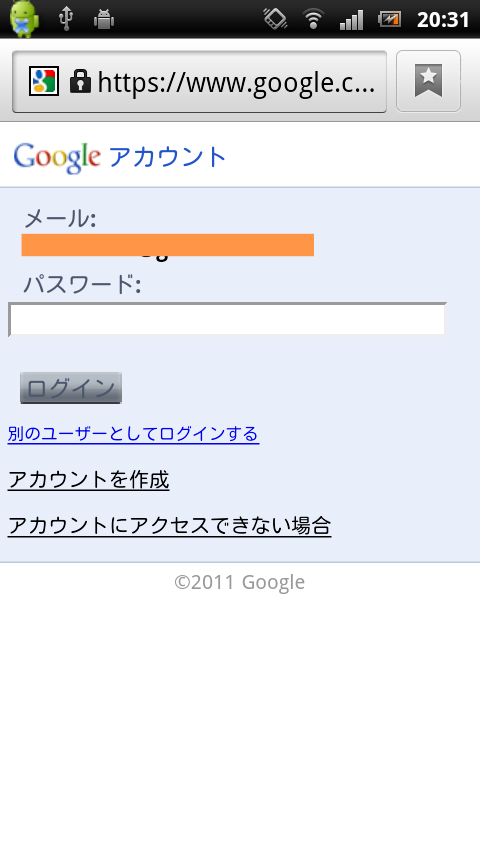
２．Googleアカウントでログイン<br />
<a href="//hatch8.en-grey.com/File/device-2011-09-13-203211.png" target="_blank"><img alt="device-2011-09-13-203211.png" src="//hatch8.en-grey.com/Img/1315913610/" style="border-top-width: 0px; border-right-width: 0px; border-bottom-width: 0px; border-left-width: 0px; border-top-style: solid; border-right-style: solid; border-bottom-style: solid; border-left-style: solid; float: left; width: 84px; height: 150px; " /></a><br />
<br />
<br />
<br />
<br />
<br />
<br />
<br />
<br />
<br />
<br />
次のページで「Sign in」を選択。<br />
<br />
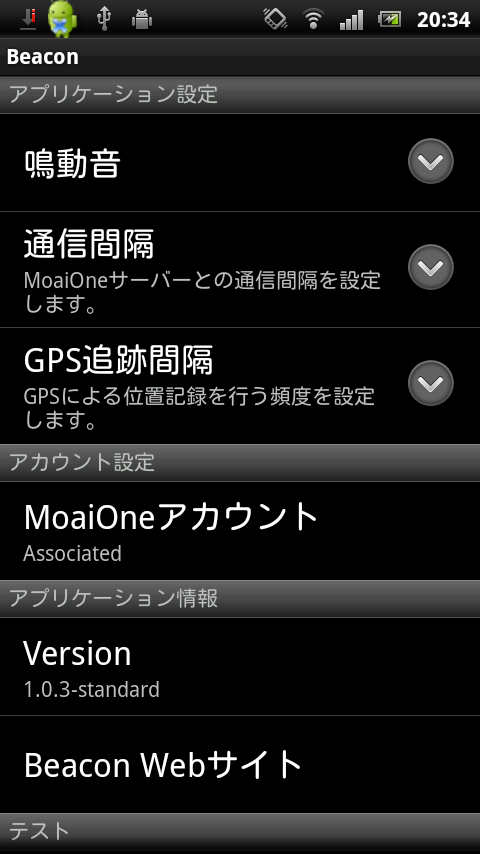
３．Beaconの設定<br />
<a href="//hatch8.en-grey.com/File/device-2011-09-13-203538.png" target="_blank"><img alt="device-2011-09-13-203538.png" src="//hatch8.en-grey.com/Img/1315913805/" style="border-top-width: 0px; border-right-width: 0px; border-bottom-width: 0px; border-left-width: 0px; border-top-style: solid; border-right-style: solid; border-bottom-style: solid; border-left-style: solid; float: left; width: 84px; height: 150px; " /></a><br />
<br />
<br />
<br />
<br />
<br />
<br />
<br />
<br />
<br />
<br />
色々設定できるみたい<br />
<br />
４．確認してみよう！<br />
PCで<a href="http://moaione.com/login">MoaiOneのサイト</a>にログイン<br />
Beaconコンソールを選択するとお使いの携帯電話が表示されます。<br />
「詳細表示」を選択すると<br />
・位置情報<br />
・バッテリー残量<br />
・鳴動<br />
・端末のロック/アンロック<br />
が選択できます。<br />
<br />
　<div style="clear:both"></div>]]></content:encoded>
    <dc:subject>iPod touch</dc:subject>
    <dc:date>2011-09-13T20:40:04+09:00</dc:date>
    <dc:creator>亜悸</dc:creator>
    <dc:publisher>NINJA BLOG</dc:publisher>
    <dc:rights>亜悸</dc:rights>
  </item>
  <item rdf:about="https://hatch8.en-grey.com/android/%E3%83%B2%E3%82%BF%E3%82%AF%E3%81%AE%E5%91%B3%E6%96%B9%EF%BC%81%E3%83%AA%E3%83%80%E3%82%A4%E3%83%A4%E3%83%AB%E3%82%A2%E3%83%97%E3%83%AA">
    <link>https://hatch8.en-grey.com/android/%E3%83%B2%E3%82%BF%E3%82%AF%E3%81%AE%E5%91%B3%E6%96%B9%EF%BC%81%E3%83%AA%E3%83%80%E3%82%A4%E3%83%A4%E3%83%AB%E3%82%A2%E3%83%97%E3%83%AA</link>
    <title>ヲタクの味方！リダイヤルアプリ</title>
    <description>ヲタクなんてものをやっているとライブチケ確保の電話・・・はインターネットになってきましたが、逆に当落確認がなかなかつながらないのはしょっちゅう。
そんな時の強い味方。


【スーパーリダイヤル】


スーパーリダイヤル


＜使い方＞
っていうほどの事もなく...</description>
    <content:encoded><![CDATA[ヲタクなんてものをやっているとライブチケ確保の電話・・・はインターネットになってきましたが、逆に当落確認がなかなかつながらないのはしょっちゅう。<br />
そんな時の強い味方。<br />
<br />
<br />
【スーパーリダイヤル】<br />
<a href="//hatch8.en-grey.com/File/9add7d8b.png" target="_blank"><img alt="9add7d8b.png" src="//hatch8.en-grey.com/Img/1315474037/" style="border-top-width: 0px; border-right-width: 0px; border-bottom-width: 0px; border-left-width: 0px; border-top-style: solid; border-right-style: solid; border-bottom-style: solid; border-left-style: solid; float: left; width: 126px; height: 126px; " /></a><br />
<br />
<br />
<br />
<a href="https://market.android.com/details?id=cn.menue.superredial">スーパーリダイヤル</a><br />
<br />
<br />
<br />
<br />
<br />
＜使い方＞<br />
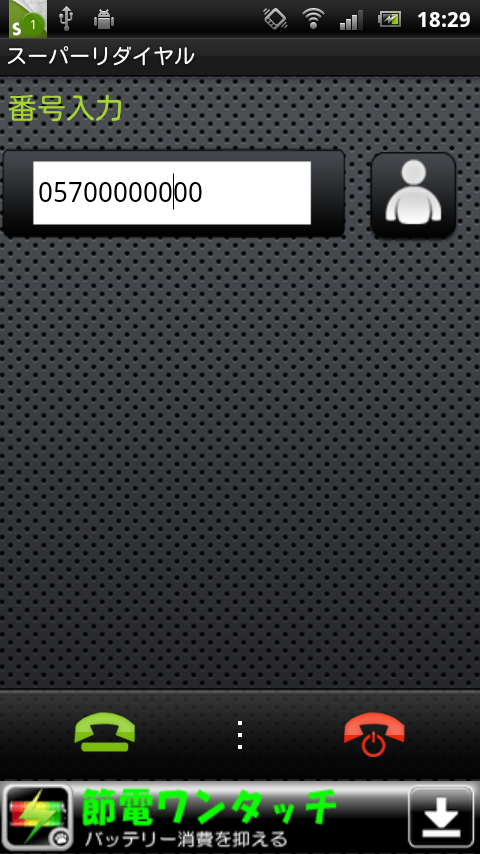
っていうほどの事もなく。<br />
番号を入力して通話ボタンを押せば、つながるまでかけ続けてくれます。<br />
<a href="//hatch8.en-grey.com/File/device-2011-09-08-182925.png" target="_blank"><img alt="device-2011-09-08-182925.png" src="//hatch8.en-grey.com/Img/1315474187/" style="border-top-width: 0px; border-right-width: 0px; border-bottom-width: 0px; border-left-width: 0px; border-top-style: solid; border-right-style: solid; border-bottom-style: solid; border-left-style: solid; float: left; width: 84px; height: 150px; " /></a><br />
<br />
<br />
<br />
<br />
<br />
<br />
<br />
<br />
<br />
<br />
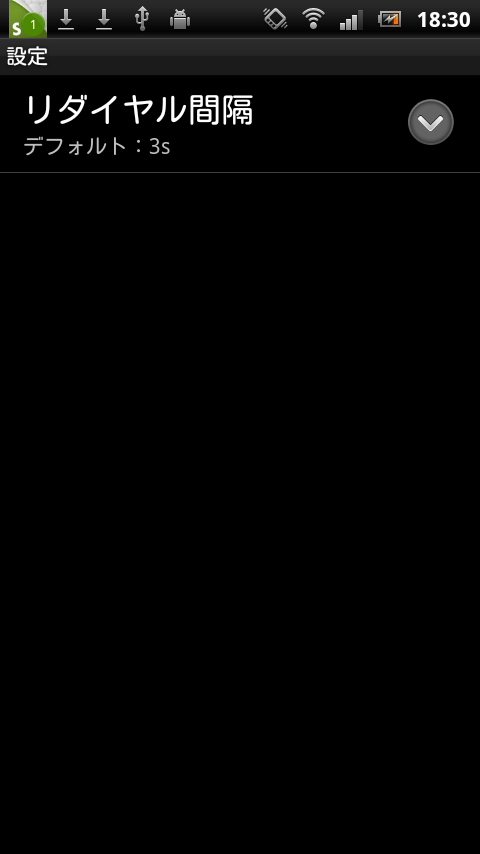
一応リダイヤル間隔も「3秒」「5秒」「10秒」から設定できるようす。<br />
<a href="//hatch8.en-grey.com/File/device-2011-09-08-183057.png" target="_blank"><img alt="device-2011-09-08-183057.png" src="//hatch8.en-grey.com/Img/1315474264/" style="border-top-width: 0px; border-right-width: 0px; border-bottom-width: 0px; border-left-width: 0px; border-top-style: solid; border-right-style: solid; border-bottom-style: solid; border-left-style: solid; float: left; width: 84px; height: 150px; " /></a><br />
<br />
<br />
<br />
<br />
<div style="clear:both"></div>]]></content:encoded>
    <dc:subject>Android</dc:subject>
    <dc:date>2011-09-08T18:31:49+09:00</dc:date>
    <dc:creator>亜悸</dc:creator>
    <dc:publisher>NINJA BLOG</dc:publisher>
    <dc:rights>亜悸</dc:rights>
  </item>
  <item rdf:about="https://hatch8.en-grey.com/android/google%E3%82%AB%E3%83%AC%E3%83%B3%E3%83%80%E3%83%BC%E3%81%A8%E5%90%8C%E6%9C%9F%EF%BC%88%E4%BA%88%E5%AE%9A%EF%BC%89%EF%BC%81%E3%83%86%E3%83%AC%E3%83%93%E6%AC%84%EF%BC%81">
    <link>https://hatch8.en-grey.com/android/google%E3%82%AB%E3%83%AC%E3%83%B3%E3%83%80%E3%83%BC%E3%81%A8%E5%90%8C%E6%9C%9F%EF%BC%88%E4%BA%88%E5%AE%9A%EF%BC%89%EF%BC%81%E3%83%86%E3%83%AC%E3%83%93%E6%AC%84%EF%BC%81</link>
    <title>Googleカレンダーと同期（予定）！テレビ欄！</title>
    <description>ヲタク、という仕事をしていますと（笑）テレビ欄の存在ってものすごく大事です。
随時Googleカレンダーに登録したりしているのですが、それすら忘れてしまうという記憶力。

・・・を補ってくれる強い味方！？


【テレビ欄】


Andoroidマーケットからダウンロード


...</description>
    <content:encoded><![CDATA[ヲタク、という仕事をしていますと（笑）テレビ欄の存在ってものすごく大事です。<br />
随時Googleカレンダーに登録したりしているのですが、それすら忘れてしまうという記憶力。<br />
<br />
・・・を補ってくれる強い味方！？<br />
<br />
<br />
【テレビ欄】<br />
<a href="//hatch8.en-grey.com/File/hi-78-4.png" target="_blank"><img alt="hi-78-4.png" src="//hatch8.en-grey.com/Img/1315398031/" style="border-top-width: 0px; border-right-width: 0px; border-bottom-width: 0px; border-left-width: 0px; border-top-style: solid; border-right-style: solid; border-bottom-style: solid; border-left-style: solid; float: left; width: 78px; height: 78px; " /></a><br />
<br />
<a href="https://market.android.com/details?id=jp.dip.sys1.android.tv&amp;feature=search_result">Andoroidマーケットからダウンロード</a><br />
<br />
<br />
<br />
<br />
【使用方法】<br />
インストールするだけ（笑）<br />
あとはお住まいの地域に合わせて設定を変更。<br />
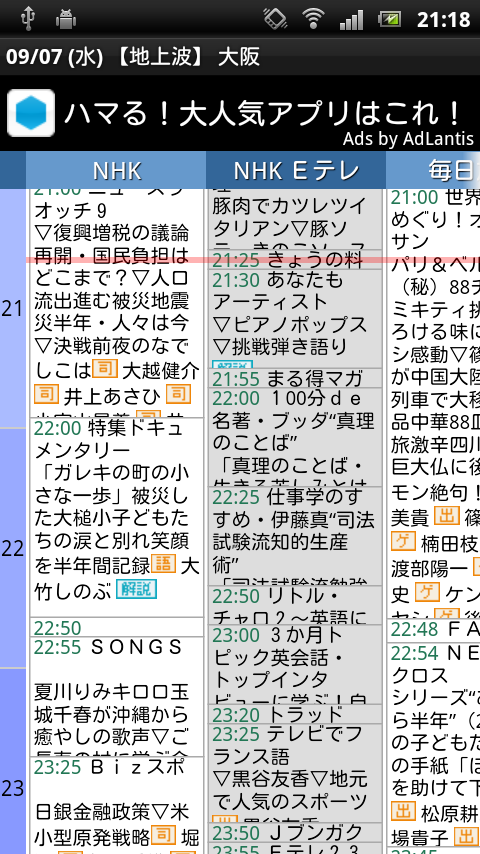
<a href="//hatch8.en-grey.com/File/device-2011-09-07-211956.png" target="_blank"><img alt="device-2011-09-07-211956.png" src="//hatch8.en-grey.com/Img/1315398052/" style="border-top-width: 0px; border-right-width: 0px; border-bottom-width: 0px; border-left-width: 0px; border-top-style: solid; border-right-style: solid; border-bottom-style: solid; border-left-style: solid; float: left; width: 84px; height: 150px; " /></a><br />
　・縦スクロールも横スクロールも自由<br />
　・列幅を変更できる<br />
　・Teitter系クライアントソフト、Evernote、Dropbox等に共有可能<br />
　・アラームあり（ちょっと不安定かな）<br />
　・現在時刻の自動表示は次回アップデートで対応予定<br />
　・Googleカレンダーとも同期予定（ここ大事！）<br />
<br />
<br />
<br />
<br />
とりあえずカレンダーとの同期を早くお願いしたいわけですが。<br />
割とスクロールもシームレスで使い勝手がイイ感じ。]]></content:encoded>
    <dc:subject>Android</dc:subject>
    <dc:date>2011-09-07T19:22:43+09:00</dc:date>
    <dc:creator>亜悸</dc:creator>
    <dc:publisher>NINJA BLOG</dc:publisher>
    <dc:rights>亜悸</dc:rights>
  </item>
  <item rdf:about="https://hatch8.en-grey.com/android/xperia%E3%80%80acro%E3%81%A7%E3%82%B9%E3%82%AF%E3%83%AA%E3%83%BC%E3%83%B3%E3%82%B7%E3%83%A7%E3%83%83%E3%83%88%E3%82%92%E6%92%AE%E3%82%8B%E6%96%B9%E6%B3%95%E3%80%90%E3%81%9D%E3%81%AE%E2%91%A0%E3%80%91">
    <link>https://hatch8.en-grey.com/android/xperia%E3%80%80acro%E3%81%A7%E3%82%B9%E3%82%AF%E3%83%AA%E3%83%BC%E3%83%B3%E3%82%B7%E3%83%A7%E3%83%83%E3%83%88%E3%82%92%E6%92%AE%E3%82%8B%E6%96%B9%E6%B3%95%E3%80%90%E3%81%9D%E3%81%AE%E2%91%A0%E3%80%91</link>
    <title>Xperia　acroでスクリーンショットを撮る方法【その①】</title>
    <description>何気に割と便利な「スクリーンショット」ですが、
なんと、実はXperiaでは標準ではスクリーンショットの機能はついていません。

どうやらXperiaでスクショを撮るには
・Xperia単体でスクショを撮る（アプリ利用）
・PC経由でスクショを撮る
の2つの方法がある様子。

とりあ...</description>
    <content:encoded><![CDATA[何気に割と便利な「スクリーンショット」ですが、<br />
なんと、実はXperiaでは標準ではスクリーンショットの機能はついていません。<br />
<br />
どうやらXperiaでスクショを撮るには<br />
・Xperia単体でスクショを撮る（アプリ利用）<br />
・PC経由でスクショを撮る<br />
の2つの方法がある様子。<br />
<br />
とりあえず今回は【PC経由でスクショを撮る】について。<br />
というよりアプリはまだまだacroに対応したいいものが出てないだけですが・・・・<br />
<br />
<br />
【PC経由でスクリーンショットを撮る方法（for Windows）】<br />
1．PCを起動<br />
まずはそこから（笑）<br />
ちなみに私はWindows　Vista<br />
<br />
2．Android-SDKのダウンロード<br />
「Android-SDK」とはAndroidアプリを開発するためのツール・・・だそうです。<br />
私はアプリ開発はしませんが、インストールしておくとスクリーンショットはもちろん、<br />
Androidをいじったりできるツール・・・らしい。<br />
<br />
下記のサイト「Android　Developers」よりダウンロード<br />
<font class="Apple-style-span" color="#666ba8"><u>http://developer.android.com/sdk/index.html</u></font><br />
「installer_r12-windows.exe」をダウンロードして下さい。（Recommendedとなっているもの）<br />
<br />
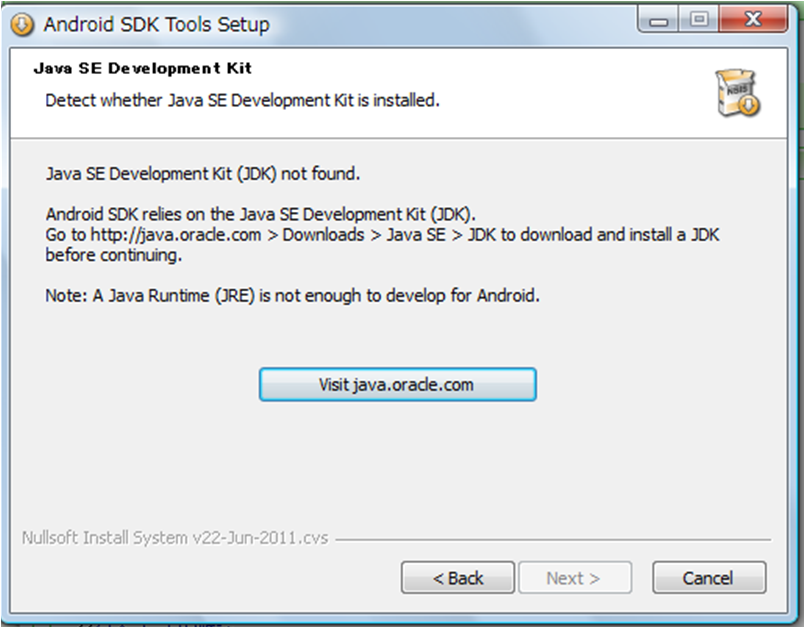
インストールする条件としてJAVAがインストールされているってのがあるようですが、<br />
インストールされてない場合は自動的に<br />
<a href="//hatch8.en-grey.com/File/07ce8baa.png" target="_blank"><img alt="07ce8baa.png" src="//hatch8.en-grey.com/Img/1315373684/" style="border-top-width: 0px; border-right-width: 0px; border-bottom-width: 0px; border-left-width: 0px; border-top-style: solid; border-right-style: solid; border-bottom-style: solid; border-left-style: solid; float: left; width: 200px; height: 156px; " /></a><br />
<br />
<br />
<br />
<br />
<br />
<br />
<br />
<br />
<br />
<br />
こんな画面が表示されるので、安心。<br />
<br />
一応ダウンロード用URLも。<br />
<a href="http://www.oracle.com/technetwork/java/javase/downloads/index.html">http://www.oracle.com/technetwork/java/javase/downloads/index.html</a><br />
私はここの「JDK」から「jdk-7-windows-i586.exe」をダウンロードしました。<br />
<br />
3．さぁLet&#39;s　インストール！<br />
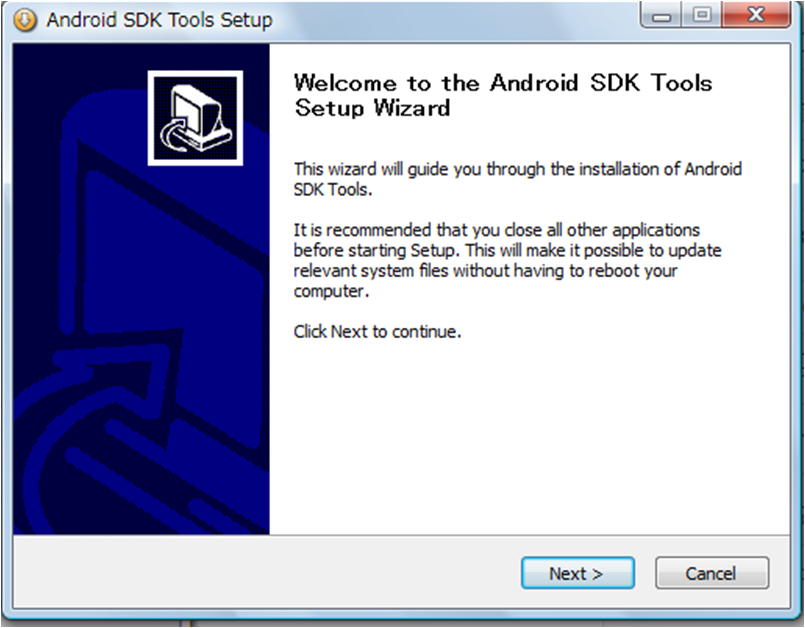
①英語だけど気にせず「Next＞」<br />
<a href="//hatch8.en-grey.com/File/1a87d7a1.png" target="_blank"><img alt="1a87d7a1.png" src="//hatch8.en-grey.com/Img/1315374151/" style="border-top-width: 0px; border-right-width: 0px; border-bottom-width: 0px; border-left-width: 0px; border-top-style: solid; border-right-style: solid; border-bottom-style: solid; border-left-style: solid; float: left; width: 200px; height: 156px; " /></a><br />
<br />
<br />
<br />
<br />
<br />
<br />
<br />
<br />
<br />
<br />
<br />
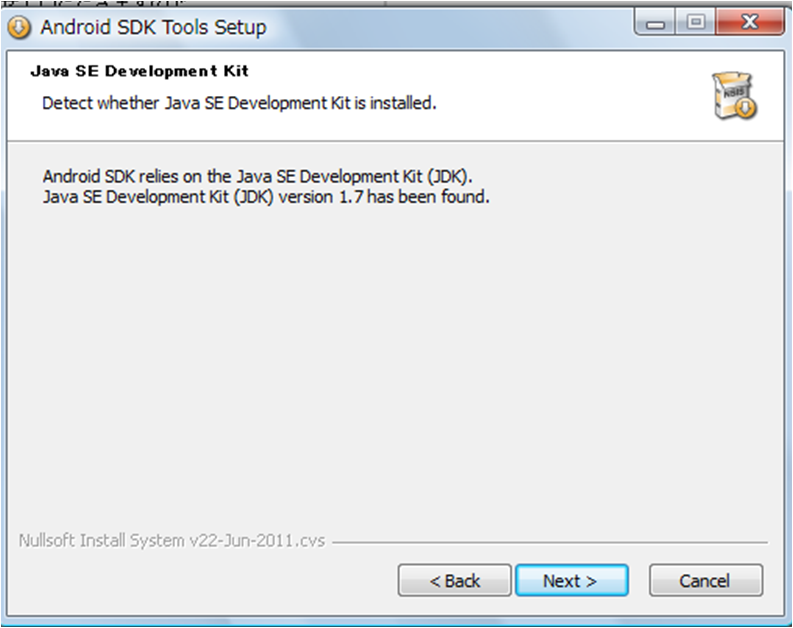
②JAVAをインストールしていると、こんな画面になるはず。<br />
勢いよく「Next＞」<br />
<a href="//hatch8.en-grey.com/File/acca4599.png" target="_blank"><img alt="acca4599.png" src="//hatch8.en-grey.com/Img/1315375092/" style="border-top-width: 0px; border-right-width: 0px; border-bottom-width: 0px; border-left-width: 0px; border-top-style: solid; border-right-style: solid; border-bottom-style: solid; border-left-style: solid; float: left; width: 200px; height: 157px; " /></a><br />
<br />
<br />
<br />
<br />
<br />
<br />
<br />
<br />
<br />
<br />
<br />
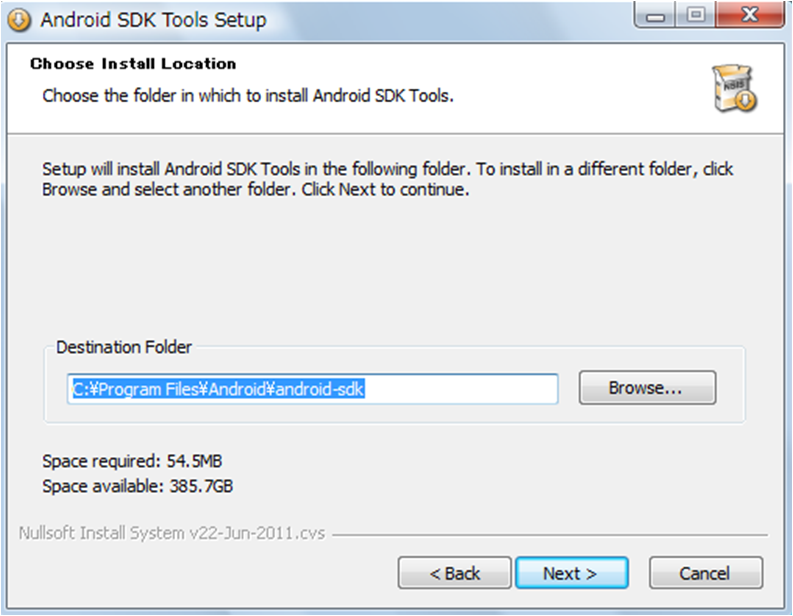
③Android-SDKをどこにインストールしますか？と聞かれます。<br />
どこがいいのかよくわからないので問題ないだろう、と思えば「Next＞」<br />
<br />
あとあと必要になるのでメモしておいた方がいいかもしれない・・・<br />
<a href="//hatch8.en-grey.com/File/c3b0b003.png" target="_blank"><img alt="c3b0b003.png" src="//hatch8.en-grey.com/Img/1315376448/" style="border-top-width: 0px; border-right-width: 0px; border-bottom-width: 0px; border-left-width: 0px; border-top-style: solid; border-right-style: solid; border-bottom-style: solid; border-left-style: solid; float: left; width: 200px; height: 155px; " /></a><br />
<br />
<br />
<br />
<br />
<br />
<br />
<br />
<br />
<br />
<br />
<br />
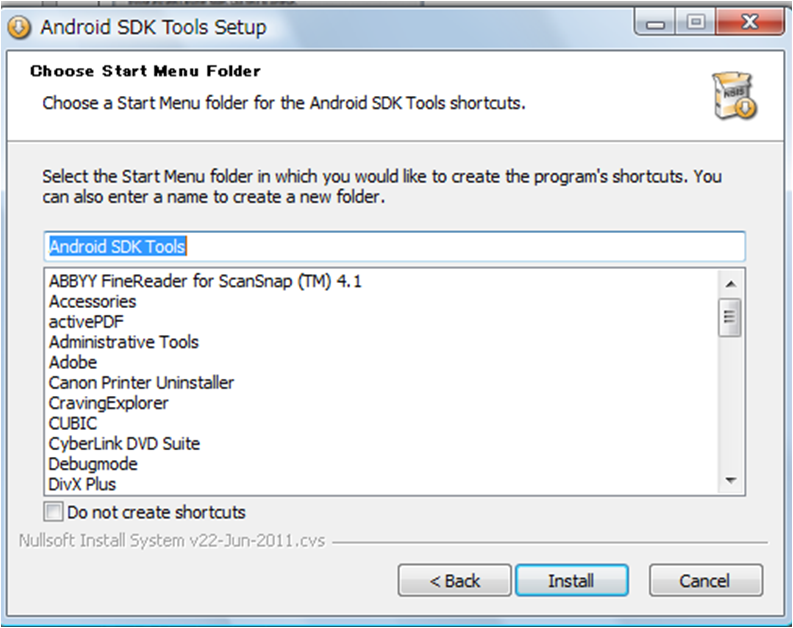
④スタートメニューのプログラム一覧に「Android-SDK」を追加しますか？とのこと。<br />
「Do　not create shortcuts」を選ぶと追加されないみたいです。<br />
<br />
とりあえず私は追加を選んで「Install＞」<br />
<a href="//hatch8.en-grey.com/File/3ae7d7ca.png" target="_blank"><img alt="3ae7d7ca.png" src="//hatch8.en-grey.com/Img/1315377886/" style="border-top-width: 0px; border-right-width: 0px; border-bottom-width: 0px; border-left-width: 0px; border-top-style: solid; border-right-style: solid; border-bottom-style: solid; border-left-style: solid; float: left; width: 200px; height: 157px; " /></a><br />
<br />
<br />
<br />
<br />
<br />
<br />
<br />
<br />
<br />
<br />
<br />
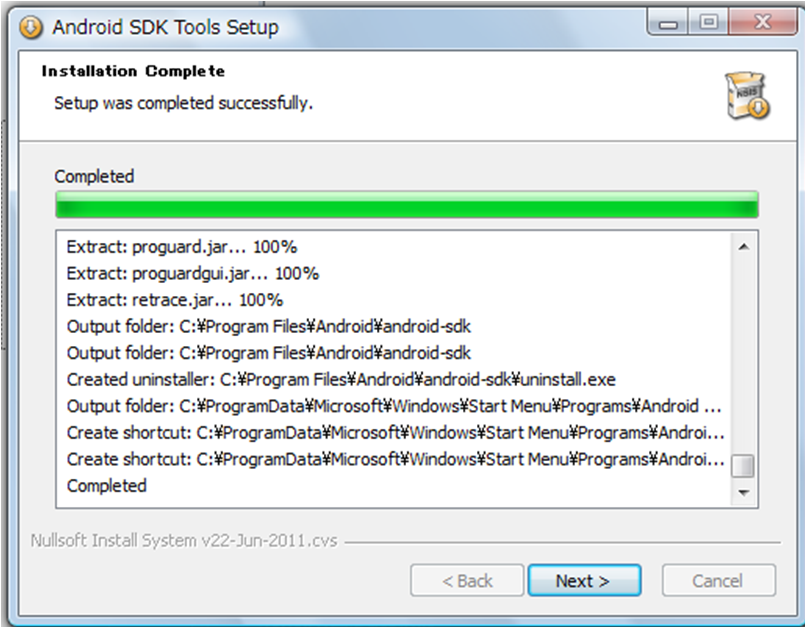
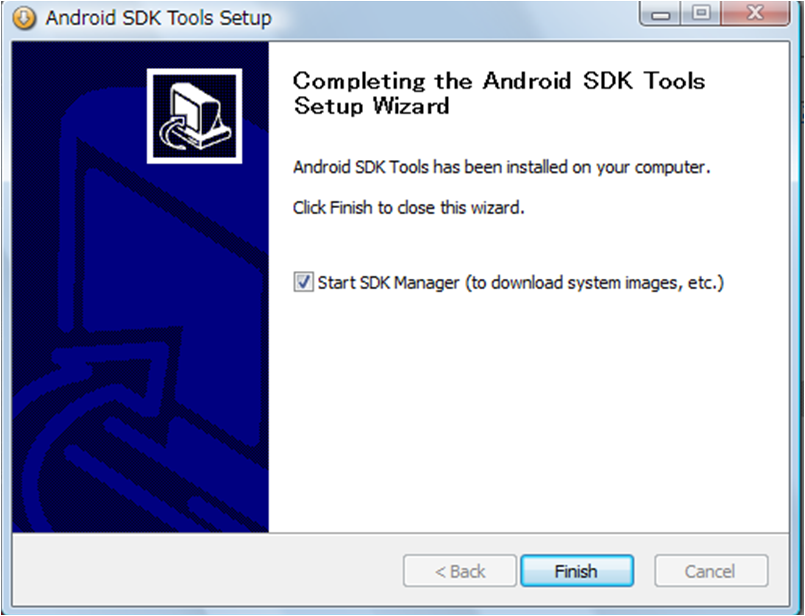
⑤インストール終了！<br />
<br />
で、SDKManagerを起動します！<br />
<a href="//hatch8.en-grey.com/File/99e86c13.png" target="_blank"><img alt="99e86c13.png" src="//hatch8.en-grey.com/Img/1315379369/" style="border-top-width: 0px; border-right-width: 0px; border-bottom-width: 0px; border-left-width: 0px; border-top-style: solid; border-right-style: solid; border-bottom-style: solid; border-left-style: solid; float: left; width: 200px; height: 155px; " /></a><br />
<br />
<br />
<br />
<br />
<br />
<br />
<br />
<br />
<br />
<br />
<a href="//hatch8.en-grey.com/File/20046016.png" target="_blank"><img alt="20046016.png" src="//hatch8.en-grey.com/Img/1315379586/" style="border-top-width: 0px; border-right-width: 0px; border-bottom-width: 0px; border-left-width: 0px; border-top-style: solid; border-right-style: solid; border-bottom-style: solid; border-left-style: solid; float: left; width: 200px; height: 152px; " /></a><br />
<br />
<br />
<br />
<br />
<br />
<br />
<br />
<br />
<br />
<br />
<br />
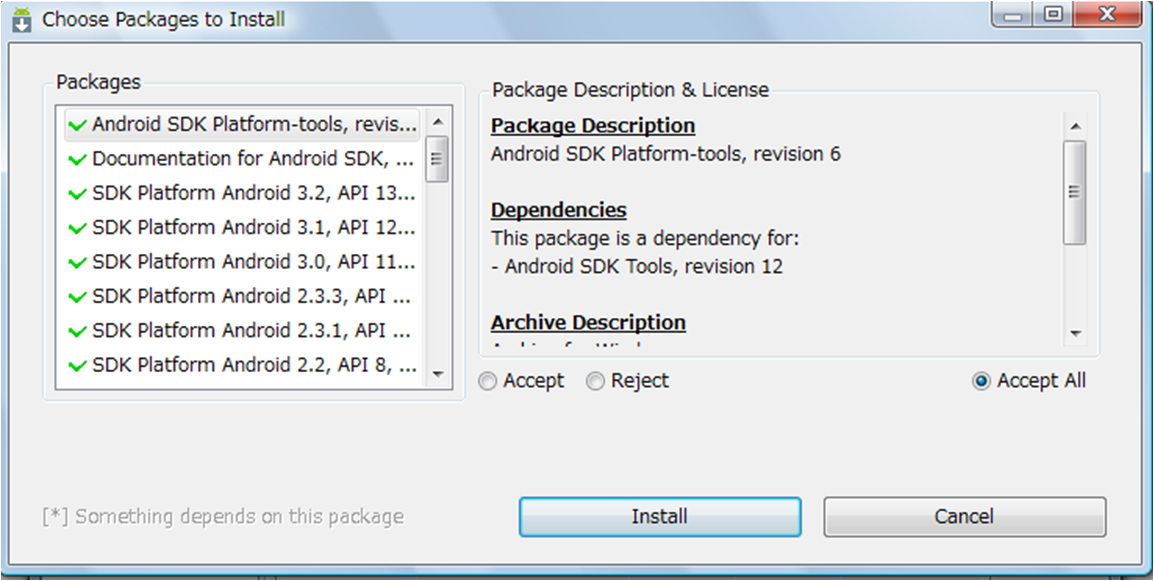
4．SDKManagerを起動<br />
SDKManagerを起動すると下記のような画面がでてきます。<br />
つまりどの機能をインストールしますか？ってことらしいのですが、面倒くさ・・・よくわからないので「Accept All」にチェックを入れてインストール。<br />
<a href="//hatch8.en-grey.com/File/d1a1f54a.png" target="_blank"><img alt="d1a1f54a.png" src="//hatch8.en-grey.com/Img/1315381484/" style="border-top-width: 0px; border-right-width: 0px; border-bottom-width: 0px; border-left-width: 0px; border-top-style: solid; border-right-style: solid; border-bottom-style: solid; border-left-style: solid; float: left; width: 200px; height: 100px; " /></a><br />
<br />
<br />
<br />
<br />
<br />
<br />
<br />
ちなみに、「Accept　All」にするととっても時間がかかりますｗｗ<br />
アプリ開発をしないなら、「Platform-tools」だけでイイらしいですよ。<br />
<br />
<a href="//hatch8.en-grey.com/File/c253a565.png" target="_blank"><img alt="c253a565.png" src="//hatch8.en-grey.com/Img/1315395698/" style="border-top-width: 0px; border-right-width: 0px; border-bottom-width: 0px; border-left-width: 0px; border-top-style: solid; border-right-style: solid; border-bottom-style: solid; border-left-style: solid; float: left; width: 200px; height: 111px; " /></a>
<div style="clear:both">
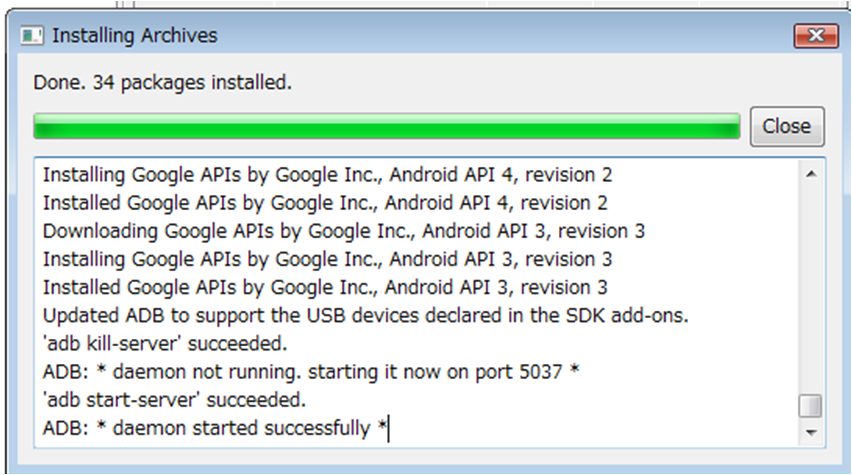
	こんな画面が出たら完了！<br />
	いったんすべて閉じて大丈夫です。<br />
	私はインストールだけで2時間ぐらいかかりました・・・疲れた。<br />
	<br />
	5．パスを通す<br />
	さて、今度は「パスを通す」という作業に入ります。<br />
	スタートメニュ&rarr;「コンピュータ」を右クリック&rarr;プロパティ&rarr;システムの詳細設定&rarr;環境変数<br />
	「新規」をクリックして<br />
	変数名：PATH<br />
	変数値：<strong>C:\Program Files\Android\android-sdk</strong>\tools;<strong>C:\Program Files\Android\android-sdk</strong>\platform-tools;<br />
	でOKでした。<br />
	（/は￥に変換して下さい）<br />
	<br />
	どうやら先ほどコピーしといたほうがいいですよ～と言っていた部分が太字の部分にあたるようです。<br />
	<br />
	6．Xperia側の設定<br />
	まずはPCcompanionがインストールされている事が大前提。<br />
	更に、Xperia側の<br />
	設定&rarr;アプリケーション&rarr;開発&rarr;USBデバッグにチェックを入れてください。<br />
	するとPCにドライバがインストールされる・・・はず。<br />
	<br />
	7．ddmsしちゃいなYO<br />
	ということでようやくたどり着きました・・・長かった。<br />
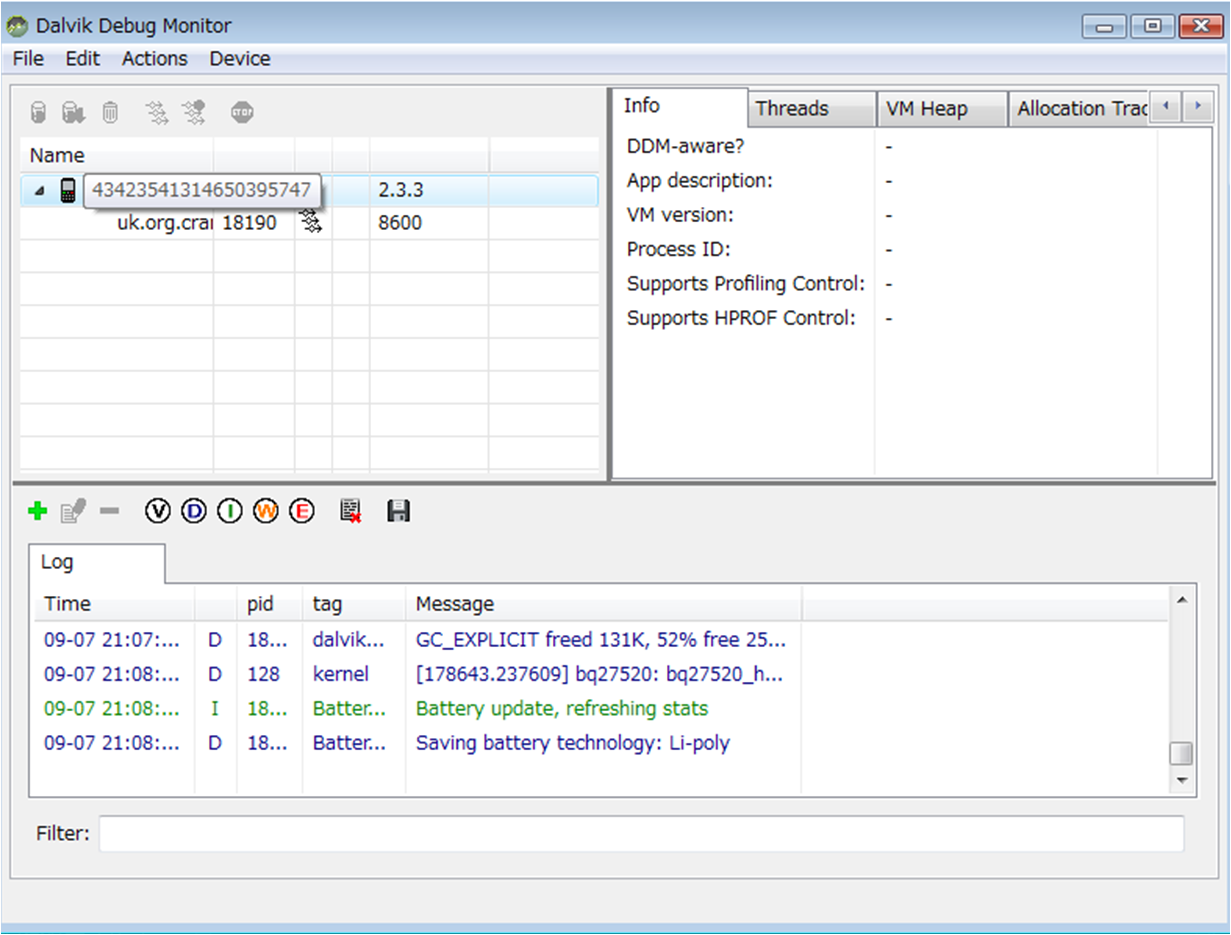
	「Windows」キー＋「R」で「ファイル名を指定して実行」を表示させ、そこに「ddms」と打ち込みます。<br />
	と。&darr;こんなのが出てきます。端末情報が表示されてたら成功です。<br />
	<a href="//hatch8.en-grey.com/File/6faca5e6.png" target="_blank"><img alt="6faca5e6.png" src="//hatch8.en-grey.com/Img/1315397344/" style="border-top-width: 0px; border-right-width: 0px; border-bottom-width: 0px; border-left-width: 0px; border-top-style: solid; border-right-style: solid; border-bottom-style: solid; border-left-style: solid; float: left; width: 150px; height: 113px; " /></a><br />
	<br />
	<br />
	<br />
	<br />
	<br />
	<br />
	<br />
	<br />
	8．スクリーンショット！<br />
	漸く・・・・ようやくたどり着きました。<br />
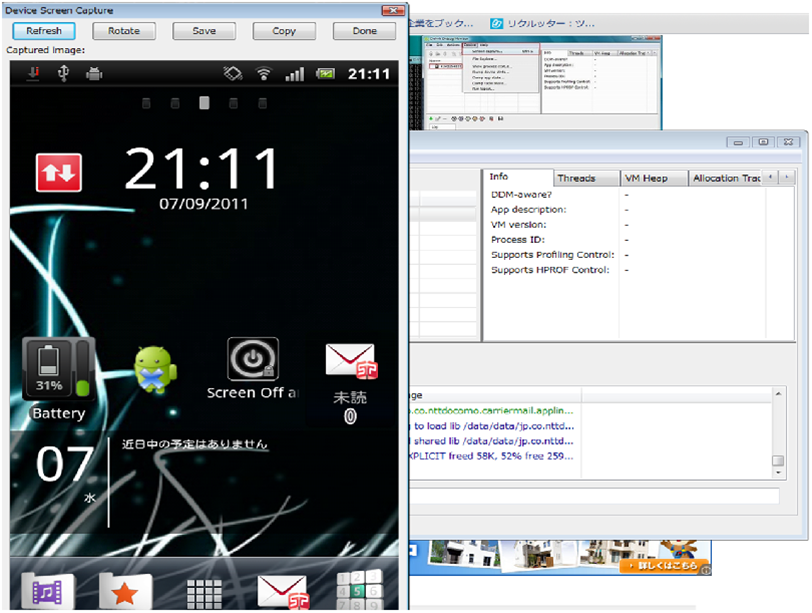
	端末情報が表示されている行を選択して、上部メニューバーの「Device」で(ScreenCapture」を選択（Ctrl+Sでも行けるっぽい）すると。<br />
	&darr;こんな感じで表示されます。<br />
	あらやだ私の何も整えていないホーム画面が。<br />
	ということで忘れずに「Save」を押して保存！長かった！<br />
	<a href="//hatch8.en-grey.com/File/5586d6fd.png" target="_blank"><img alt="5586d6fd.png" src="//hatch8.en-grey.com/Img/1315397682/" style="border-top-width: 0px; border-right-width: 0px; border-bottom-width: 0px; border-left-width: 0px; border-top-style: solid; border-right-style: solid; border-bottom-style: solid; border-left-style: solid; float: left; width: 200px; height: 151px; " /></a></div>
]]></content:encoded>
    <dc:subject>Android</dc:subject>
    <dc:date>2011-09-07T16:45:59+09:00</dc:date>
    <dc:creator>亜悸</dc:creator>
    <dc:publisher>NINJA BLOG</dc:publisher>
    <dc:rights>亜悸</dc:rights>
  </item>
  <item rdf:about="https://hatch8.en-grey.com/%E3%81%9D%E3%81%AE%E4%BB%96/%E3%81%84%E3%82%84%E3%81%81%E3%83%BB%E3%83%BB%E3%83%BB%E3%83%BB">
    <link>https://hatch8.en-grey.com/%E3%81%9D%E3%81%AE%E4%BB%96/%E3%81%84%E3%82%84%E3%81%81%E3%83%BB%E3%83%BB%E3%83%BB%E3%83%BB</link>
    <title>いやぁ・・・・</title>
    <description>すっかり放置ですね。継続性のなさは何年たっても変わらない。


とりあえず今はXperia　acroを手に入れたので、
その内時間作って書きたいな、と思います。カスタマイズしたい。...</description>
    <content:encoded><![CDATA[すっかり放置ですね。継続性のなさは何年たっても変わらない。<br />
<br />
<br />
とりあえず今はXperia　acroを手に入れたので、<br />
その内時間作って書きたいな、と思います。カスタマイズしたい。]]></content:encoded>
    <dc:subject>その他</dc:subject>
    <dc:date>2011-09-07T13:04:55+09:00</dc:date>
    <dc:creator>亜悸</dc:creator>
    <dc:publisher>NINJA BLOG</dc:publisher>
    <dc:rights>亜悸</dc:rights>
  </item>
  <item rdf:about="https://hatch8.en-grey.com/%E3%81%9D%E3%81%AE%E4%BB%96/iphone%E3%80%81ipad%E3%82%92%E7%B4%9B%E5%A4%B1%E3%81%97%E3%81%9F%E3%82%89%E3%83%BB%E3%83%BB%E3%83%BB">
    <link>https://hatch8.en-grey.com/%E3%81%9D%E3%81%AE%E4%BB%96/iphone%E3%80%81ipad%E3%82%92%E7%B4%9B%E5%A4%B1%E3%81%97%E3%81%9F%E3%82%89%E3%83%BB%E3%83%BB%E3%83%BB</link>
    <title>iPhone、iPadを紛失したら・・・</title>
    <description>&amp;amp;nbsp;うちの会社はiPadを業務用に支給されてて、その便利さもあってそれぞれがiPhoneなりAndroidなりを持っているのですが。
先日うちの後輩が何を思ったか自転車のかごにかばんを忘れてアパートに入り、案の定iPadだけ盗まれたという・・・。

しかもPC関係に疎い後輩。どうやらパ...</description>
    <content:encoded><![CDATA[&nbsp;うちの会社はiPadを業務用に支給されてて、その便利さもあってそれぞれがiPhoneなりAndroidなりを持っているのですが。<br />
先日うちの後輩が何を思ったか自転車のかごにかばんを忘れてアパートに入り、案の定iPadだけ盗まれたという・・・。<br />
<br />
しかもPC関係に疎い後輩。どうやらパスワード類をほとんど設定してなかった様子・・・・。<br />
<br />
<br />
営業用ですから当然営業用資料・会社のメールとの同期、など行っていたのであわてて対処。といっても今さら解除は出来ないので以下の方法を取りました。<br />
<br />
・Dropboxのファイル共有を無効化&rarr;アカウントの変更<br />
・メールの同期解除&rarr;Gmail上の全メールをダウンロード&rarr;メールを削除&rarr;メールアドレスの変更<br />
・連絡帳のデータ消去<br />
<br />
Goodreader等既にiPad上に保存されているものはどうにもなりませんでした。<br />
<br />
何よりもまずはパスワードを設定することですけどね。<br />
<br />
<br />
あと、iPadの位置検索機能は無料でも使えるので、設定しておくと便利かと。<br />
iPodでもiOS4.2から利用できます。<br />
<a target="_blank" style="color: rgb(51, 51, 204); " href="http://www2k.biglobe.ne.jp/~t_muto/ipod/howto_touch_findmyiphone.htm">http://www2k.biglobe.ne.jp/~t_<wbr></wbr>muto/ipod/howto_touch_<wbr></wbr>findmyiphone.htm</a><br />
<br type="_moz" />]]></content:encoded>
    <dc:subject>その他</dc:subject>
    <dc:date>2011-03-02T09:07:28+09:00</dc:date>
    <dc:creator>亜悸</dc:creator>
    <dc:publisher>NINJA BLOG</dc:publisher>
    <dc:rights>亜悸</dc:rights>
  </item>
  <item rdf:about="https://hatch8.en-grey.com/ipod%20touch/gizmobiez">
    <link>https://hatch8.en-grey.com/ipod%20touch/gizmobiez</link>
    <title>Gizmobiez</title>
    <description>現在私が利用しているプロテクトシールです。
画像をお見せできないのが残念なのですが（なぜならiPodでiPod本体は撮れないから・・・・）
非常に色々なパターンがる上にそこまで高価ではないので楽しめそう。
シールなので2～3回なら失敗しても大丈夫でした。

何種類か揃えて気分によって変えて...</description>
    <content:encoded><![CDATA[現在私が利用しているプロテクトシールです。<br />
画像をお見せできないのが残念なのですが（なぜならiPodでiPod本体は撮れないから・・・・）<br />
非常に色々なパターンがる上にそこまで高価ではないので楽しめそう。<br />
シールなので2～3回なら失敗しても大丈夫でした。<br />
<br />
何種類か揃えて気分によって変えてみるのもありかと。<br />
<br />
ちなみにシートを購入すると、デスクトップ用の画像も手に入ります。<br />
お揃いにしてみてもかわいい。<br />
<img alt="c2e3b702.PNG" border="0" align="left" src="//hatch8.en-grey.com/Img/1299025763/" /><br />
&nbsp;<br />
<a href="http://gizmobies.co.jp/"><br />
<br />
<br />
<br />
<br />
<br />
<br />
<br />
<br />
<br />
http://gizmobies.co.jp/</a>]]></content:encoded>
    <dc:subject>iPod touch</dc:subject>
    <dc:date>2011-03-02T09:06:57+09:00</dc:date>
    <dc:creator>亜悸</dc:creator>
    <dc:publisher>NINJA BLOG</dc:publisher>
    <dc:rights>亜悸</dc:rights>
  </item>
</rdf:RDF>